Graphical interfaces replaced the command-line for everyday computing in the mid-1990s, so why do web developers still rely on it? If you look at the React documentation, for example, there is no simple download button. Instead you are asked to type a command into a terminal. Almost every tool, library, and framework you will encounter in web development requires the command-line, whether for backing up code to a repository like Git or installing dependencies via a package manager like npm.
The command-line has persisted for good reasons: it is easier to port programs between operating systems, and it is far quicker to write open source tools without the overhead of building a graphical interface. Tutorials and documentation tend to use the terms terminal, command-line, shell, and bash interchangeably, and for the most part that is fine. But knowing the differences matters in situations like being told to edit a Bash configuration file when your system is actually running Zsh. This article explains what each term means and how they all relate to each other.
What is a Terminal?
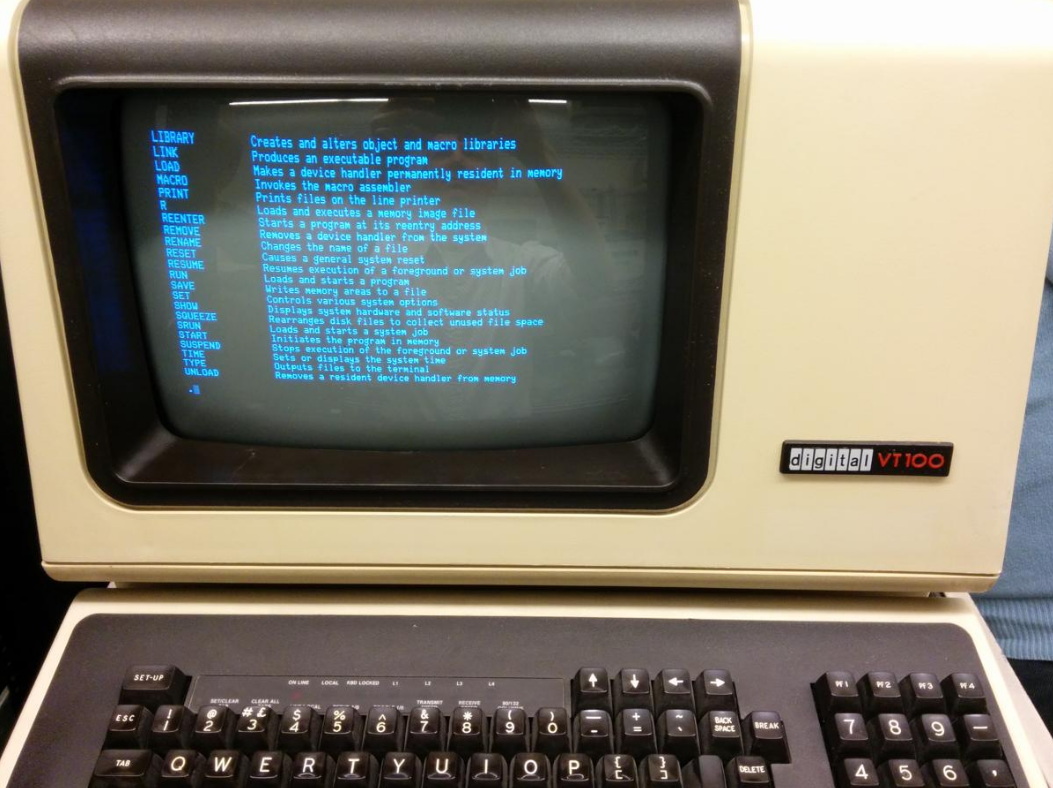
Before personal computers became widespread, users interacted with a central computer through a dedicated physical device called a computer terminal, a keyboard for input and a screen for output, connected to a shared mainframe. A company or university department could have hundreds of terminals sharing a single mainframe. There was no mouse, no graphics, no local storage. Just text on a screen.
Physical terminals are long gone from everyday use, but modern operating systems replicate the experience through terminal emulators, applications that provide the same text input and output within a standard desktop window. The terminal emulator is simply the application providing the window. The shell is the separate program running inside it, which is covered in the next section.
What is a Shell
A shell is any program that exposes the services of the operating system to the user or to other programs. It is, essentially, the interface of the operating system. Shells come in two broad forms: graphical and command-line.
Graphical-based shells
When using a modern desktop computer, most people interact with a graphical shell without thinking of it in those terms. Applications like Windows Explorer or Finder on macOS are graphical shells that allow you to navigate the file system, move, copy, and delete files, and launch applications by clicking and dragging icons. Under the hood, these actions are still calling operating system services via the kernel.
Command-line shells
Before graphical interfaces became widespread, all of these tasks were performed by typing text commands into a physical computer terminal. The program loaded onto the terminal to interpret those typed commands was called the shell. This is the kind of shell most developers are referring to when they use the term today.
Why “Shell”?
The term shell comes from thinking of an operating system like a nut: the kernel is the hard core at the centre, responsible for managing hardware and system resources, and the outer shell is a program that provides access to those resources via the kernel’s API. In other words, the shell sits between you and the operating system.
A brief history of Unix Shells
Modern operating systems including Linux and macOS are based on Unix, and the command-line shells written for Unix decades ago are still in active use today.
Bourne shell (1979)
The Bourne shell (sh) was created in 1979 for Version 7 Unix. As well as allowing users to type commands interactively, it introduced the ability to write shell scripts — text files containing a sequence of commands that could be executed automatically. Many of the popular shells used today are based on Bourne and are described as Bourne compatible. A script written for the Bourne shell will generally run without modification on any Bourne-compatible shell.
Bash: Bourne-Again shell (1989)
Bash (Bourne-again shell) was created in 1989 as a free, open-source, and feature-enhanced replacement for the Bourne shell. It became the default shell on Linux, macOS, and was distributed with Cygwin for Windows. Bash’s dominance as the default shell for so long is why the words bash and shell are still routinely used interchangeably — though strictly speaking, Bash is one particular shell among many.
Bash remained macOS’s default shell until 2019, when Apple stopped bundling the latest version due to licensing concerns (Bash version 4 and above uses the GPL v3 licence, which Apple does not ship). macOS now only includes the older Bash 3.2, and has replaced Bash as the default with zsh.
zsh: Z shell (1990)
Zsh (Z shell) was created in 1990, just a year after Bash. It is fully Bourne compatible, shares many features with Bash, and adds further enhancements of its own. For most of its life it was a niche choice. It was, for example, the default shell on the Commodore Amiga. It made a significant comeback when Apple adopted zsh as the default shell in macOS Catalina (2019). If you are on a Mac today, zsh is almost certainly the shell your terminal is running.
What Is a Login Shell?
Historically, when physical terminals were used to access a shared mainframe, the login shell was the shell that loaded at startup to prompt the user for credentials and then apply their personal profile and configuration settings.
On a modern computer you’re already logged in when you open a terminal emulator, so the explicit login process is skipped but the profile and configuration files that a login shell would have read are still loaded automatically. The term login shell is now commonly used to mean the default shell that loads when a terminal is opened.
Login shells still have a practical use when connecting to remote machines and can be explicitly invoked using a flag on your shell commands or scripts.
Secure Shell (SSH)
Despite the name, Secure Shell (SSH) is not a shell interpreter. It is a network protocol used to securely authenticate and connect to a remote computer, allowing you to run commands on that machine as if you were sitting at its terminal. Once connected over SSH, you are dropped into a shell on the remote system but SSH itself is the secure tunnel, not the shell.
More information can be found in this guide to Secure Shell (SSH)
Further reading
- Shell computing : https://en.wikipedia.org/wiki/Shell_(computing)
- List of command-line interpretors: https://en.wikipedia.org/wiki/List_of_command-line_interpreters
- Bourne shell : https://en.wikipedia.org/wiki/Bourne_shell
- Bash shell : https://en.wikipedia.org/wiki/Bash_(Unix_shell)
- Z shell (zsh) https://en.wikipedia.org/wiki/Z_shell
- HIstory of Linux shells: https://developer.ibm.com/tutorials/l-linux-shells/
- Why Apple moved from Bash to zsh: https://thenextweb.com/news/why-does-macos-catalina-use-zsh-instead-of-bash-licensing
- Use zsh as the default shell on your Mac: https://support.apple.com/en-gb/102360